— A Map Of Your Book —
EPUB supports a Table of Contents (abbreviated as TOC) to help readers navigate their way around your book. Typically EPUB e-readers provide a button or menu item to open the TOC.
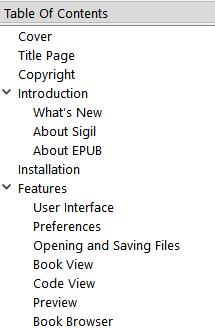
Sigil provides several ways to work with a TOC. The Table of Contents window in Sigil gives you a dynamic view of your TOC – you can view exactly what your TOC looks like, and select entries to jump to. The Generate TOC function can create a new TOC based on the headings in your document. The Edit TOC function allows you to update an existing TOC when you can’t or don’t want to use Generate TOC. And Create HTML TOC can create a new HTML page in your document showing what is in the EPUB TOC.
The EPUB TOC is stored in a special XML file called the NCX (typically named toc.ncx) under EPUB2 and in an XHTML document called the NAV (typically named nav.xhtml) under EPUB3. These files are designed to be machine readable so that both e-readers and accessibility software can use them to allow the user to quickly and efficiently navigate throughout the EPUB.
To open the TOC window if it isn’t already open select the menu item :
You can single-click on an entry to jump to its location in the book, and expand or collapse entries by clicking on the icons to the left of the chapter names if there are sub-chapters.
Use the right-click context menu to select or to quickly show or hide sub-chapters.
In order to create a Table of Contents automatically you first need to define the headings or chapters in your book.
In Code View you can create the your headings by selecting the text you want to make into a heading, and then selecting the level of the heading you want from the menu. Or more easily by using the formatting buttons on the toolbar.

If your chapter names do not use heading tags (h1, h2, etc.) as described above, then you will not be able to generate a TOC automatically. As heading tags are very important for Accessibility reasons you should strongly consider adding them.
Start your TOC generation by clicking the Generate Table of Contents button  , or selecting the menu item then select the headings you want included in the book’s Table of Contents:
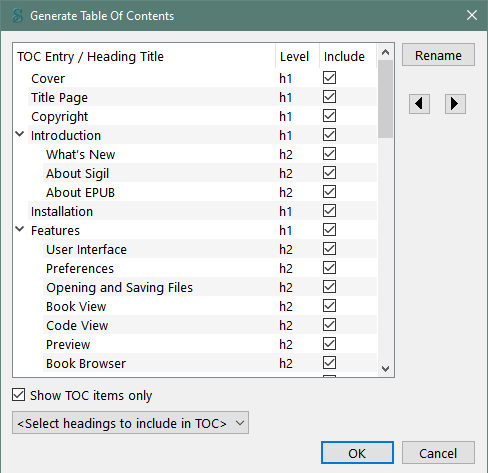
Check any name that you want to be included in the Table of Contents, and uncheck any entry that you don’t want included.
When you use Generate Table Of Contents Sigil will update not only your TOC, but also your HTML documents – to make sure that the information you enter can be used again when you next generate the TOC.
You can use the checkbox to show or hide entries that will not be included in the TOC. This does not affect your TOC, only what you see in the dialog. You can also use the drop-down menu to quickly select or unselect headings of a certain type, and then fine tune the selections manually.
You can rename the TOC entry by clicking . This will also change your HTML code to set the “title” attribute of your heading.
You can change the level of your Headings using the left and right arrow keys. This will also change the level of the headings in your HTML code.
The tooltip for each title (just move your mouse over the title and leave it for a few seconds) will show you which file the heading is in and its HTML code.
The tooltip for the headings of table will show you the number of headings of each type:

When you select , Sigil will add or update automatically generated IDs to any headings you have selected if they don’t have regular IDs already. It will then create a new NCX file on EPUB2 and Update the NAV file on EPUB3 that contain links to your chapters. If your heading is “near” the beginning of your HTML file, Sigil will link directly to the file and not to the heading ID. This is because on some e-readers linking directly to an element slows down the display of the TOC.
Generating the TOC automatically will overwrite any existing TOC in the toc.ncx file of an EPUB2 or the nav.xhtml file of an EPUB3.
If you can’t or don’t want to generate the TOC from the headings in the document, you can use Edit Table Of Contents to make changes to the existing TOC. Any changes made to the TOC will not affect your HTML files, and all changes would be lost if you use Generate TOC.
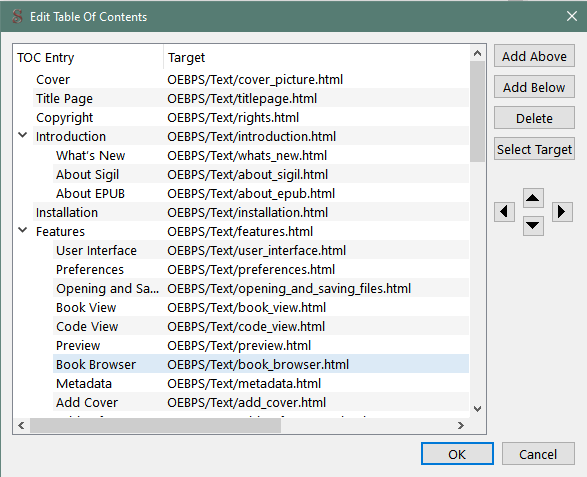
You can edit an entry by double-clicking on it. You can add new entries or delete existing ones. Use the arrows to increase or decrease the heading level of an entry.
To change what a TOC entry points to you can type in the target destination directly, or use the button. This will open the Select Target dialog where you can choose which location to point the TOC entry to:

The right-click context menu allows you to delete or rename entries, or expand or collapse the list.
TOC entries must point to a valid target. If you just want a heading in the TOC, point it to the next valid entry.
You can use the menu to create an Inline HTML TOC for your EPUB. This type of table of contents is meant to be seen and used by human readers and need not be machine readable unlike the NCX or NAV.
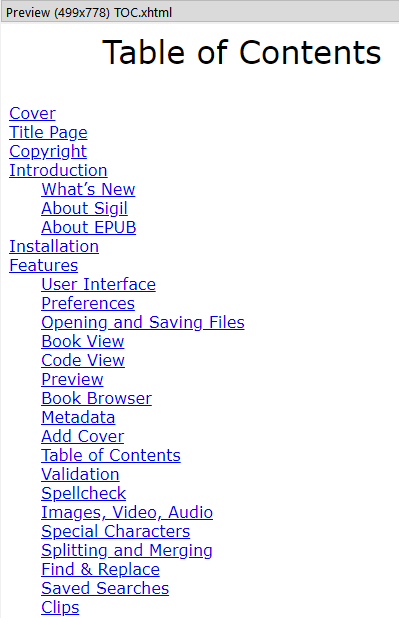
An inline TOC is just another HTML page in the EPUB that contains the Table of Contents in text format with links that can be used to jump to specific chapters.
Another reason for creating an HTML Table of Contents is that these can be converted to other ebook formats that do not support the NCX of EPUB2 or NAV of EPUB3.
The Generate HTML Table of Contents menu item will overwrite any existing HTML TOC file (if it has a semantic type of TOC). If no such file exists it will create an HTML file called toc.html and mark its semantic type as TOC. If toc.html already exists it will be replaced.
You can change the contents of the inline TOC once you’ve created it – but remember to do this each time you create the TOC.
The generated HTML TOC page uses a separate CSS file (sgc-toc.css) to format the TOC. If the file already exists in your book it will not be overwritten (so you can customise it without losing your changes). But if it does not exist, it will look for sgc-toc.css in your preferences directory and use that as the default file. If there is no file in your preferences directory, then Sigil will create a default stylesheet for the TOC.
If you’re generating an EPUB3 TOC, Sigil will look for sgc-nav.css in your preferences directory and use that as the default file.
If you create an EPUB3 book with Sigil or open an EPUB3 book without an NCX file, no NCX will exist. If you would like to add an NCX to make your EPUB3 more backwards compatible after editing is finished, use menu item to generate and add a NCX that older EPUB2-only devices should be able to use.