 or selecting the menu item .
— Working with Chapters and Files —
An EPUB could consist of one large HTML file with all of your text but that EPUB would not load on some older ebook readers and will be slower to load and edit. Imagine having to layout an entire book in order to show the very first page. For this reason well designed EPUBs consist of multiple files each containing part of your book. This makes the EPUB accessible on even older e-reading devices while at the same time greatly speeding up loading, displaying, and even editing. All of your files can be easily accessed using the Book Browser.
If you have loaded an large HTML file into Sigil and want to divide it into separate files or chapters, then you can use Sigil’s Split functions. And if you have several smaller files that you want to combine into a larger file, then you can use the Merge function.
Most e-readers start each new HTML file on a new page – giving you automatic page breaks between chapters if you split your Chapters into separate files.
You can split a file into 2 files at your cursor position immediately by clicking the Split At Cursor button or selecting the menu item .
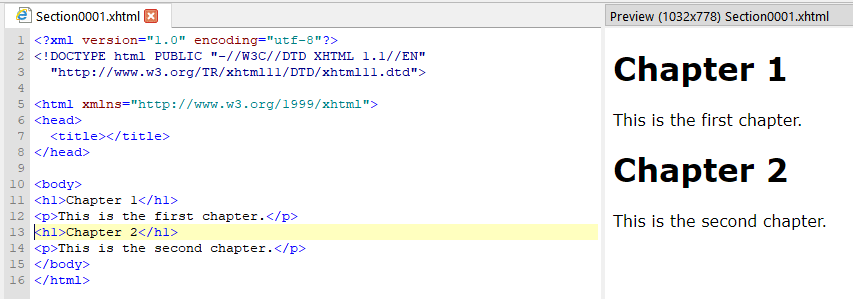
This is the easiest way to split a single file. Simply click in your document exactly where you want the file to be split, e.g. at the beginning of a chapter name:
Then click to split the file:
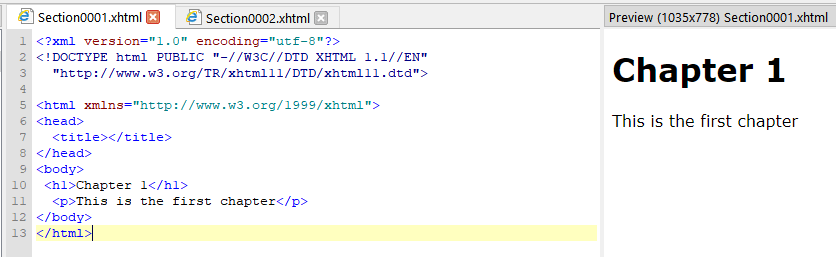

Everything from the beginning of the original file up to the point where you clicked is kept in the first file, and everything after the point you clicked on is put into a new file. Note that the first file kept its name, and a new file with a new name was created to hold the second file. You can rename and edit the files as necessary.
If you want to split several files or a large file into many files, then you can use the file marking approach.
1. Scroll through your file, and wherever you want a new chapter to start click in the document to set your cursor position. Then select the menu item or its shortcut. This will insert code into your document telling Sigil to remember that you want a new chapter to begin here – you will see a horizontal line in Preview exactly where you inserted the marker:
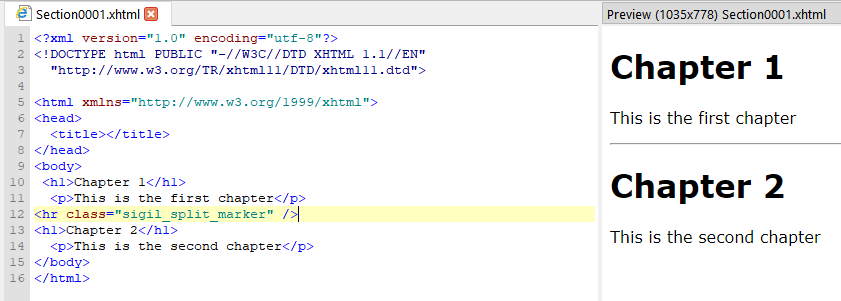
2. When you have marked all your chapters, use . This will automatically split all of your files into as many files as you marked. If you decide not to split the file, you can delete the horizontal marker lines.
Once you have split your files you can rename them. And you can even Merge some or all of them together again.
You can use Find and Replace to insert split markers just before every chapter heading if you have a lot of chapters.
If you split a file, any header information is copied to the new file.
If you want to combine two or more files into one file, you can use Merge.
To Merge two adjacent files, right-click on the second file and then select the menu item , or select the second file and use the Merge shortcut. The second file will be merged into the first file (the file above). You will not be prompted to confirm the merge.
To Merge more than two files, select all the files you want to merge, then right-click on the selection and choose . You will be prompted to confirm the merge:
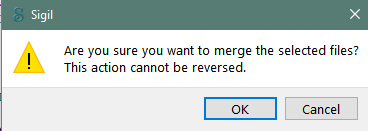
Once you confirm OK, your files will be combined into the first file.
Save your EPUB before Splitting or Merging! Or alternatively make a Checkpoint to create a restore point in case you ever need to revert.